The My Claim Summary widget is only available if your company’s Worksy admin has added it in your dashboard. Once enabled, it provides a quick overview of your claims.

Step 1
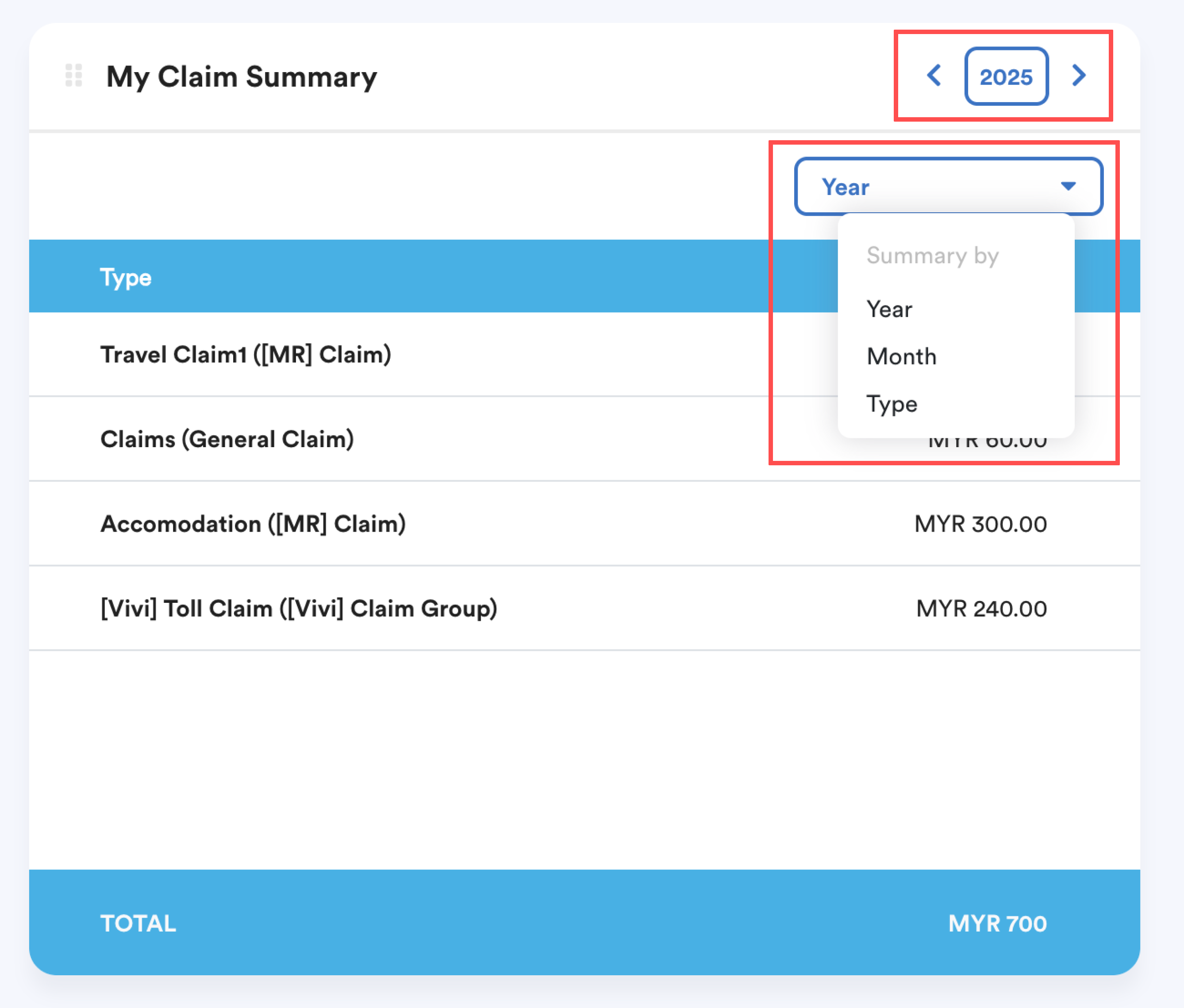
When the widget is enabled, find My Claim Summary on your dashboard.
Click the Year button to select the year you want to view.
Filter your view for the summary by Year, Month, or Type using the drop-down menu in the top-right corner of the widget.
Step 2
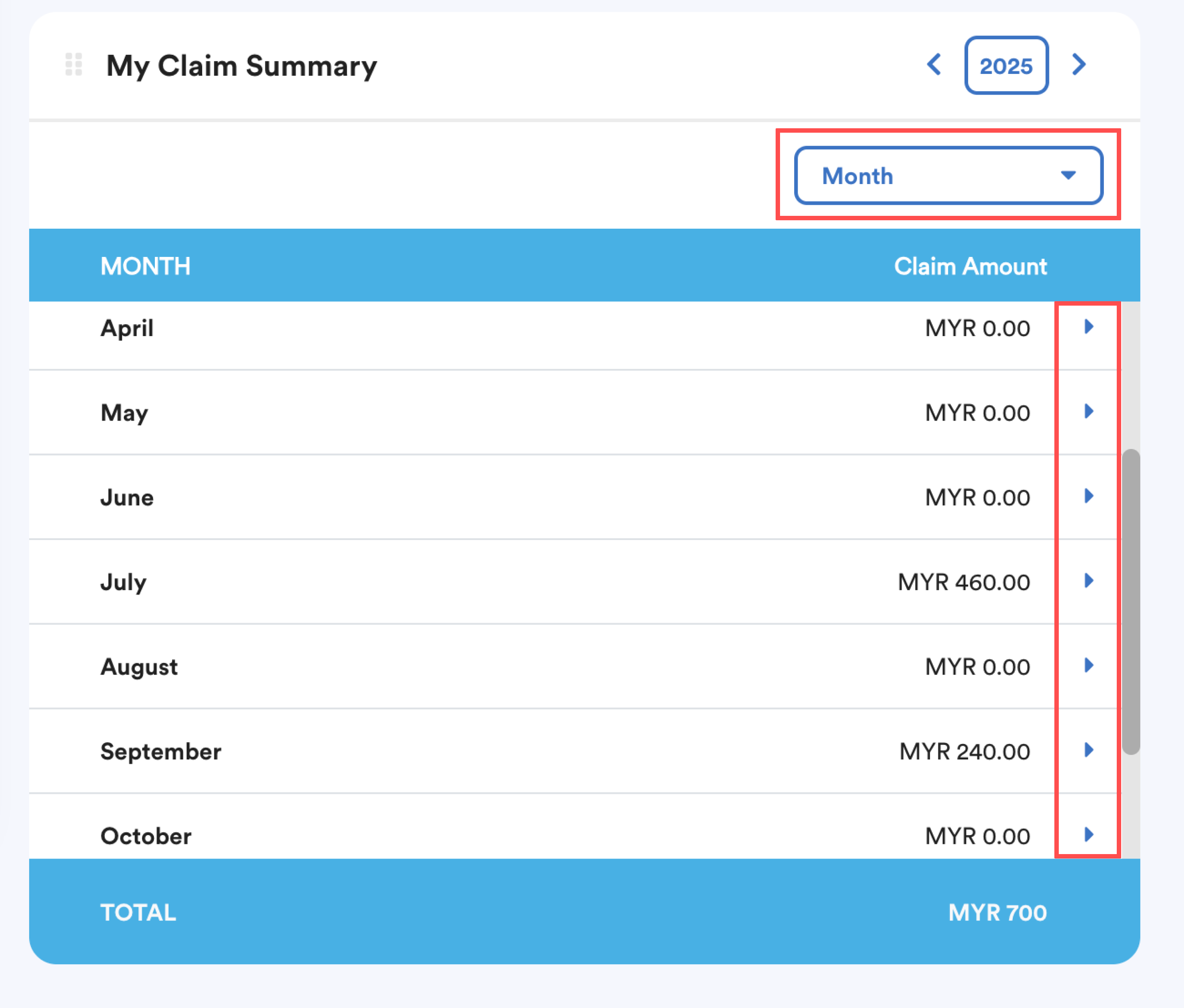
If you choose to view summary by Month, click the mini arrow next to the month to expand a detailed summary of your claims.
You'll see Claim History such as:
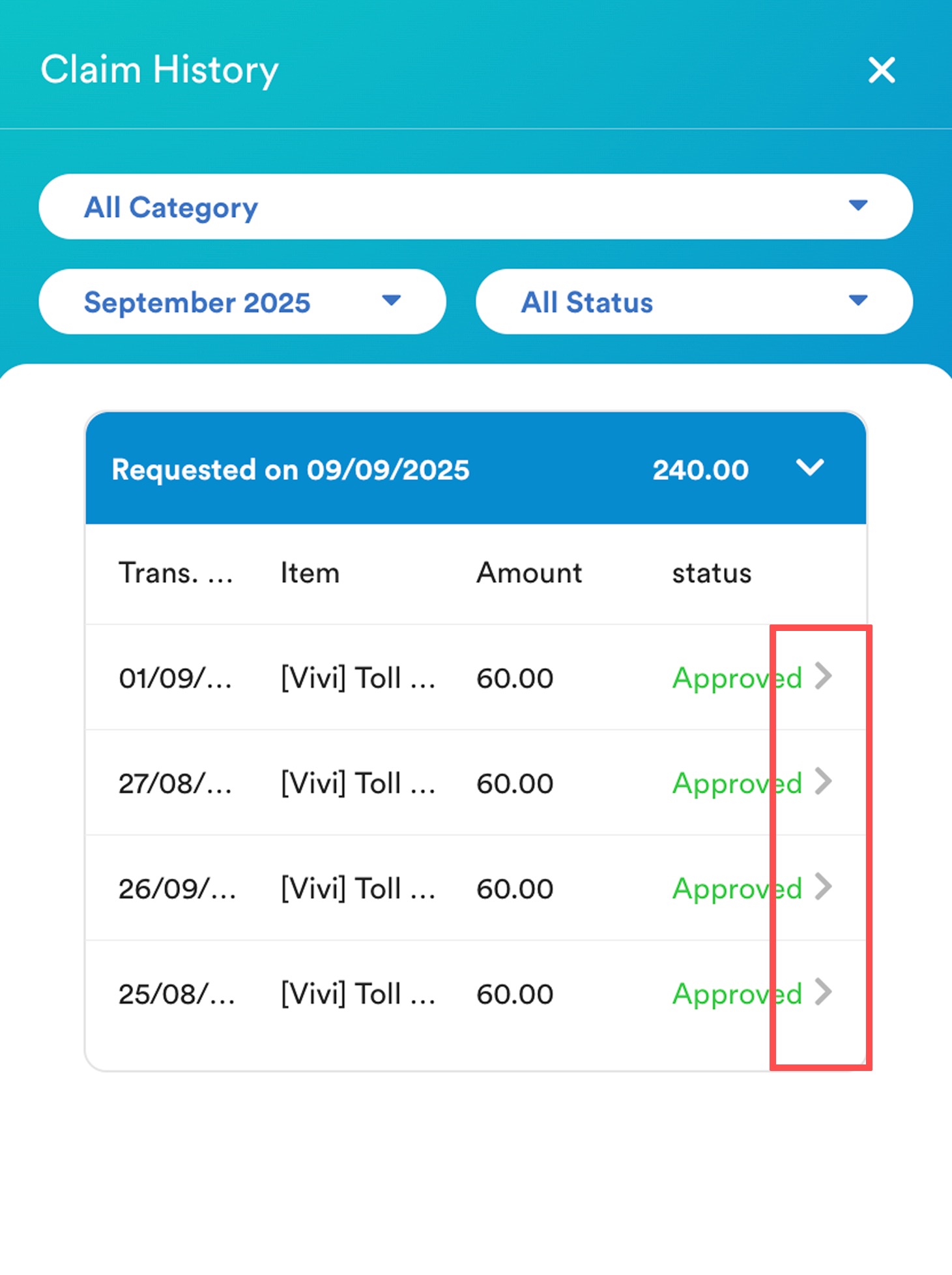
Requested Date
Nett Amount
Transaction Date
Item
Amount
Status
Click the arrow next to a claim status to open the detailed Claim History panel for the claim item.
Step 3
In detailed Claim History panel, you can view the claim item's information:
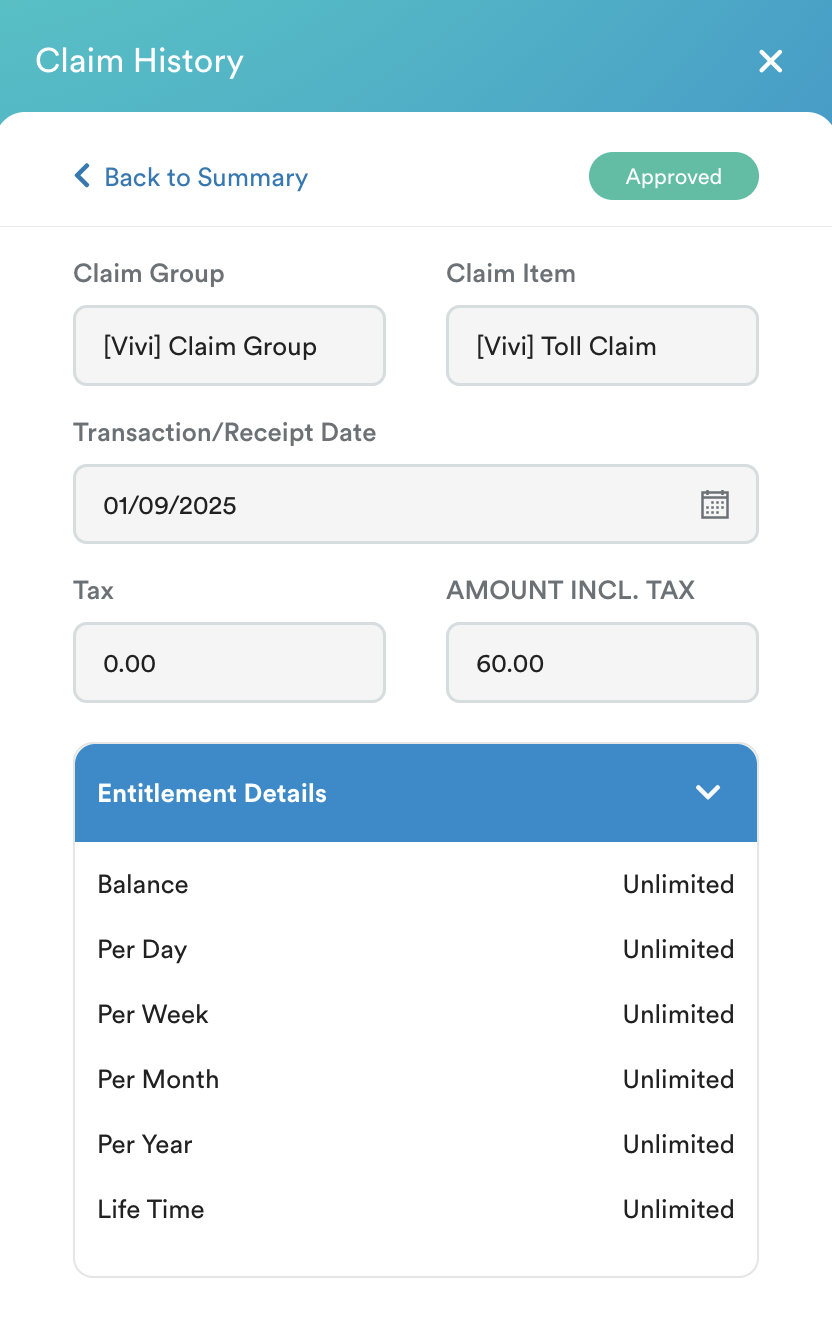
Claim Group
Transaction Date
Amount
Limit cap for the claim as set by management
Note: All claim details are read-only after approval and cannot be edited by employees.
Refer this guide to view your claim history and balance: Viewing Claim History & Balance (Individual Record)
We hope this explanation clarifies the matter. If you require additional assistance, do not hesitate to contact our support team.
Was this article helpful?
That’s Great!
Thank you for your feedback
Sorry! We couldn't be helpful
Thank you for your feedback
Feedback sent
We appreciate your effort and will try to fix the article